
Switching Lab Level 1

Welcome to switching lab level 1


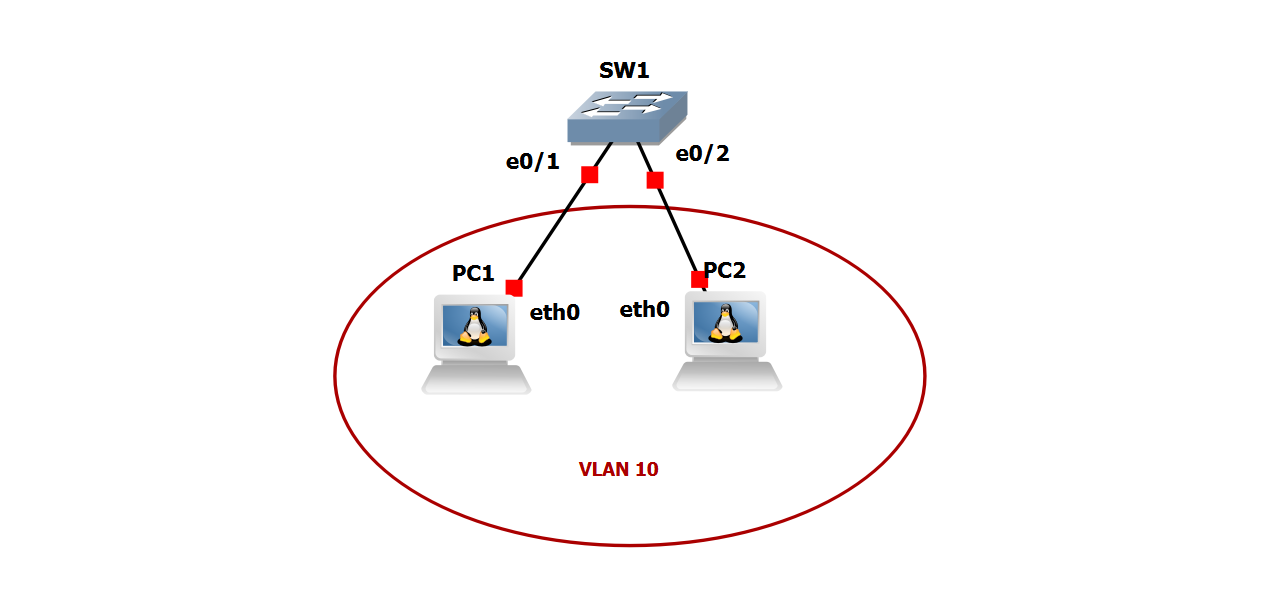
Lab Topology

switch-lab-level-1-topology

Lab Environment

PC Node Configuration Commands & Other Info

To configure an ip address: ifconfig eth0 <ip address> netmask <mask> up

To confirm the ip address on the interface: ifconfig

To configure the gateway ip address: route add default gw <gateway ip address>

To confirm the default gateway ip: route

To enable DHCP for an interface: udchpc <interface>

ctrl+c or command+c on MAC to cancel a ping or traceroute command

If a username and password is requested to login into the linux PC host within the topology, use: gns3/gns3 or tc/tc

Lab Tasks

On SW1

Create VLAN 10 and name the vlan DATA

- Verify the VLAN was created

Configure PC1 and PC2 as access ports and assign them to VLAN 10

- Verify the ports are in VLAN 10 as well as the ports are access-ports


On PC1

Configure PC1 with ip address 192.168.10.11/24


On PC2

Configure PC2 with ip address 192.168.10.12/24


Test Connectivity

Test connectivity between PC1 and PC2 (Each device should be able to ping the other)

Lab Solution

Switch1:

Configuration Commands:


configure terminal


vlan 10

name DATA

exit


interface range e0/1-2

switchport mode access

switchport access vlan 10

exit


end


Verification Commands:


show vlan


show vlan brief


show interface status


show interface switchport


show run


show run int eth0/1


show run int eth0/2


PC1:

Configuration Commands:


ifconfig eth0 192.168.10.11 netmask 255.255.255.0 up


Verification Commands


ifconfig


PC2:

Configuration Commands:


ifconfig eth0 192.168.10.12 netmask 255.255.255.0 up


Verification Commands


ifconfig


Lab Solution Understanding

For this lab, you were first tasked with creating “VLAN 10”. To accomplish this, you first must go into configuration terminal mode SW(config)# from privilege exec mode SW#. From there, you must create VLAN 10 using the VLAN command keyword followed by the VLAN number you want to create.

Please note: The VLAN keyword is not case sensitive and you can use capitalization, uppercase, lowercase, or a mix of those if you like for the spelling of the keyword.

The next step was to name the VLAN “DATA”. To accomplish this, we must use the keyword “name“ followed by the name we would like to assign to the VLAN. The next thing we were asked to do is verify the VLAN was created. We can accomplish this in three ways. The first and second way would be to use the show VLAN (not case sensitive) or show VLAN brief commands from user exec mode denote by > after the name of the device, for instance SW>, or from privilege exec mode respectively. The third way would be to use the do command followed by either show VLAN or show VLAN brief from configuration mode or any sub-configuration modes, for instance under SW(config-if)# for interface configuration mode you can use do show VLAN. The do command can be used for any show commands when in configuration mode or any of its sub-configuration modes.

Please note: if the do show VLAN command were to be use right after using the VLAN command for a VLAN that was being created for the first time without first exiting the VLAN sub-configuration mode, SW(conf-vlan)#, then the VLAN that you are creating will not show in the output. You must first create the VLAN then issue the exit or end command before the new VLAN will be added to the VLAN database and show in the output using the VLAN commands. Additionally, you can create the VLAN and name it at the same time, and then issue the exit or end commands so that you do not have to go back into the VLAN configuration mode twice; just to add the name for the VLAN.

An additional note: A VLAN can also be created by going into an interface and configuring the port to associate it with a VLAN that has not been previously created yet. When you do this, the Cisco operating system will realize that the VLAN does not exist and will proceed to create the VLAN for you. When done this way, you will be able to immediately use the do show VLAN or do show VLAN brief commands to verify the VLAN was indeed created along with verifying the interface is now associated with that VLAN. However, from a design, troubleshooting, security, safety, and peace of mind perspective, you want to create the VLAN manually using the steps indicated previously to avoid any configuration errors or unforeseen consequences.

Once the VLAN has been successfully created, you will be able to see the VLAN in the output using either the show VLAN or show VLAN Brief commands. The second task we were asked to complete was to configure the ports leading to PC1 and PC2 as access ports and then assign them to VLAN 10. We can accomplish this task by using the interface range command in configuration mode. The interface range command allows us to configure multiple interfaces at the same time. This command is best used when the exact same information needs to be applied to multiple interfaces. If any of the information differs in the slightest, then the interface range command should not be used; and you should configure the ports independently. To accomplish this task, in configuration mode, SW(conf)#, we use the interface range e0/1-2 command to enter into the interface range sub-configuration mode, SW(conf-range-if)#, to configure the interfaces. From here, we issue the switchport mode access command to tell the switch we want to hard set these interfaces to static access mode.

Please note: If we do not use this command, the ports will be set to auto which is the default for all switch interfaces. There are three told switch port modes on a Cisco switch, auto, access, and trunk. Leaving the port set to auto could compromise the security of the device and cause network issues in the future. The security concerns are due to a bad actor connecting another switch into the switch port or a wall jack that attaches to that port so that they can establish a trunk connection between their switch and ours. From there, they can ease drop on traffic or perform other attacks such as changing the way the traffic flows through the network, or perform other reconnaissance tactics on the network. Furthermore, an end user on the network could connect a switch to the port without having any malicious intent and could subsequently cause network issues due to traffic now trying to flow through that switch. Consequently, further issues could arise due to the switch not having adequate hardware and being place on the network in a sub-optimal topology causing sub-optimal switching due to its location. Moreover, it would also more than likely violate the security requirements and standards for the company.

Next, we use the command switchport access VLAN 10. This tells the switch that we want to associate the port with VLAN 10, and only VLAN 10 when it is operating as an access port. Next, we were asked to verify that the switch ports for PC1 and PC2 were access ports and assigned to VLAN 10. We can accomplish this with several show command. The show commands we can use to accomplish this goal are: show VLAN, show VLAN brief, show interface status, show interface switchport , show running-configuration (show run for short), show run interface . To accomplish this, we will begin with show VLAN brief. We will issue the command show VLAN brief and view the output. The output should show that interfaces e0/1 and e0/2 are associated with VLAN 10, and only VLAN 10. Next, we will use show interface status command. The output for show interface status will show that e0/1 is an access-port and it is in VLAN 10. The output will also show that the interface for e0/2 is also an access-port and is in VLAN 10. Next, we will use the show interface switchport command. In the output for the show interface switchport e0/1 and switch port e0/2, respectively, we will see a lot of information about the interface and its switch port configuration. The information we are concern with is the VLAN association and the operation mode: static access. This lets us know that the interface is set to static and is associated with VLAN 10. Next, we could use the show run command and scroll all the way down through the output to find the interface and its configuration. Or alternatively, we could use the show run interface command, followed by the interface, which allows us to directly filter the output of the show running-configuration to include only the interface information. The output from the show run interface command is the exact same information we would see if we ran the regular show run command and scroll through the output.

Please note that any of the show run commands (and several other commands) requires you to be in privilege exec mode with a privilege level of 15 (the highest level supported by a Cisco device) at the minimum. Priveilege level 15 is the default priviege level when logging into a brand new or factory reset switch and router. Moreover, the Cisco IOS allows you to create users and roles. You can then assign those specific users a privilege level or group and then tied those users or groups to specific show commands at different privilege levels for security, separation of duty, and least privilege requirements.

Once we issue the show run command, we will see in the output allow of the configuration for that particular interface. Under the interface for e0/1 and e0/2 using the command show run interface e0/1 and show run interface e0/2 respectively, we should see the commands, switchport mode access, and switchport access VLAN 10. The third task we were ask to perform was to configure the IP address 192.168.10.11/24 on PC1.

Please note: We use a small foot print Linux container called Alpine Linux in the topology, and if you are not familiar with Linux operating systems, the commands may be new to you. Please consult the “PC Node Configuration Command & Other Info” portion of the webpage for information on basic IP addressing, mask, gw commands and other information.

To accomplish this, we will issue the following command on the command line for PC1: ifconfig eth0 192.168.10.11 netmask 255.255.255.0 up.

Please note, that “up” is just there to make sure the port is in the up state. This is done just in case the port somehow didn’t come up or got shutdown for some reason.

Next we will verify the port took the IP address and mask by issuing the follow command: ifconfig Under interface eth0 we are looking for IP address 192.168.10.11, mask 255.255.255.0 and the keyword “up” We then will repeat the steps on PC2 but just changing the IP address to the correct noted in the task steps. Once both of the PC’s have their IP address, we will then move to the next step by verifying that both of the PC’s can ping each other. On PC1, we issue the command ping 192.168.10.12 from the command line. We should get several ping replies from PC2 at this point. To cancel the ping process, hold ctrl+c or command+c on MAC OS to cancel the ping request.

Please note: If you do not get any ping responses (you get ping timeouts) from PC2 after waiting for several ping replies, then check your configuration on the switch 1 and PC1 and PC2 again. If all else fails, restart the devices and reconfigure them again to see if that fixes any issues you may have been having.

Next, we move over to PC2 and issue the ping command towards PC1: ping 192.168.10.11. At this point we should have full connectivity between PC1 and PC2.

And with that, the lab tasks have been completed.